
IdentiCapture - iFrame
Embed IdentiCapture in an iFrame
This section explains how to embed LEM Verify IdentiCapture in an iFrame anywhere to your website.
Step 1 - Add the StartVerification function
Add the StartVerification function in a <script> tag in the <head> tag:
var startVerification = () => {
	const params = {
    	accountId: '<AccountId>',
    	sessionId: '<SessionId>',
    	logoUrl: '<logo URL>',
  		logoHeight: '<Logo Height>px',
   		bgColour: 'ffffff',
    	bgImage: 'none',
    	lang: 'en',
      noBorders: true
  	}

	window.onmessage = (event) => {
		console.log(`Event message from iframe: [event code]:${event.data.code} [event name]:${event.data.name}`);
	};

	document.getElementById('iframe').src = `https://lemverify.co/?acc=${params.accountId}&sessionId=${params.sessionId}&--img-logo=url(${params.logoUrl})&--img-logo-ht=${params.logoHeight}&--bg-color=${params.bgColour}&--bg-img=${params.bgImage}&locale=${params.lang}&noborders=${params.noBorders}`;
	document.getElementById('iframe').classList.add('iframe')
};
The recommended params for a simple integration are as follows, giving a white background:
const params = {
  accountId: '<AccountId>',
  sessionId: '<SessionId>',
  bgColour: 'ffffff',
  noBorders: true
}
URL Parameters
| Parameter | Required | Type | Comments |
|---|---|---|---|
| accountId | Yes | String | The AccountId that can be obtained from the Account Settings in your LEM Dashboard. |
| sessionId | Yes | String | The SessionId obtained via the API for the verification |
| logoUrl | Optional | String | The https URL of the logo |
| logoHeight | Optional* | String | The height value measured in pixels |
| bgColour | Optional | String | The background hex colour value, for example a white background would have a value ffffff |
| bgImage | Optional | String | The https URL of the background image |
| lang | Optional | String | Default is en. Acceptable values are:endefrptiteszh |
| noBorders | Options | Boolean | Default is false.Set to true if you don't wish to have the shadow border around the iframe. |
Event Messages
The event messages are fired through the window.onmessage function. An example of this as follows:
window.onmessage = (event) => {
  console.log(`Event message from iframe: [event code]:${event.data.code} [event name]:${event.data.name}`);
};
| Event | Code | Comments |
|---|---|---|
| acceptTerms | 100 | Event once the user accepts the Terms & Conditions |
| selectDocMethod | 200 | Event once user selects the Document |
| selectCountryMethod | 200 | Event once user selects the Country of origin for selected Document. Only applies to all documents except for Passports |
| userCapturedDocumentFrontStart | 300 | Event once the document capture process starts for the front document |
| userCapturedDocumentBackStart | 300 | Event once the document capture process starts for the back document |
| userDocumentFileSendComplete | 300 | Event once the document capture process has been completed |
| livenessStarted | 400 | Event once the Liveness process starts |
| livenessEnded | 400 | Event once the Liveness process has been completed |
| userCapturedSupportDocument | 500 | Event once the supporting documents has been uploaded |
| addressSelect | 600 | Event once the address has been selected |
| finishedAndThanks | 700 | Event once the Finish button is pressed |
Step 2 - Add the iFrame tag
Add the <iframe> tag to the page where you would like for it to display
NOTE: The attributes of the <iframe> tag is very important
<iframe id="iframe" allow="camera;microphone" src="" title="description"></iframe>
Attributes:
id - the ID of the iFrame, set to iframe
allow - The for the browser to allow camera and microphone permissions
src - The source of the iFrame, set to blank, the source is dynamically created in the previous step
Step 3 - Add the iFrame styling
In a <style> tag, add the following CSS to style the iFrame:
iframe {
    margin: 10px;
    border: none;
    width: 0;
    height: 0;
}

.iframe {
    width: 411px;
    height: 731px;
    border-radius: 20px;
}
Step 4 - Finishing Touches
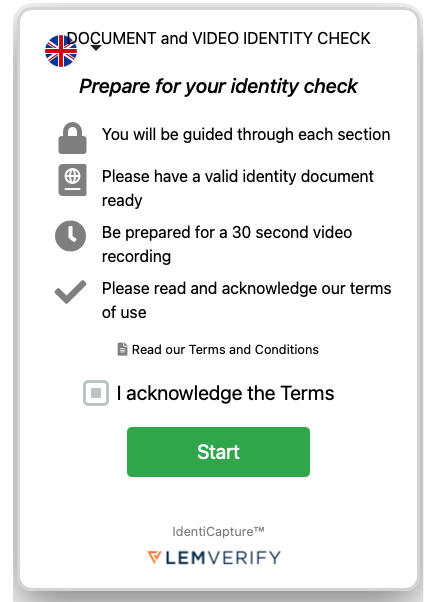
Once Steps 1 - 3 has been completed, your iFrame should somewhat resemble the image thats shown below:
Updated about 5 years ago